There are two super important things in a sitemap.xml file. The <loc> and the last <lastmod> entries. Bing and Google don't use priority or frequency so they just take up space and bandwidth. The problem with miva merchant's built in sitemap generator is that <lastmod> always defaults to the current date which hurts more than helps. The sitemap generator code below uses the true last modified date of a product for <lastmod> so that search engines can prioritize your newer products.
First, go here and follow the instructions to set up a new template feed: https://www.scotsscripts.com/mvblog/feed-basic-google-product-feed.html
Note that the screenshot on that page shows the file being created in the data directory, make sure you change that dropdown to "script" or nothing will be able to read the sitemap.
After you set it up go to the bottom of the settings screen and click "edit template"
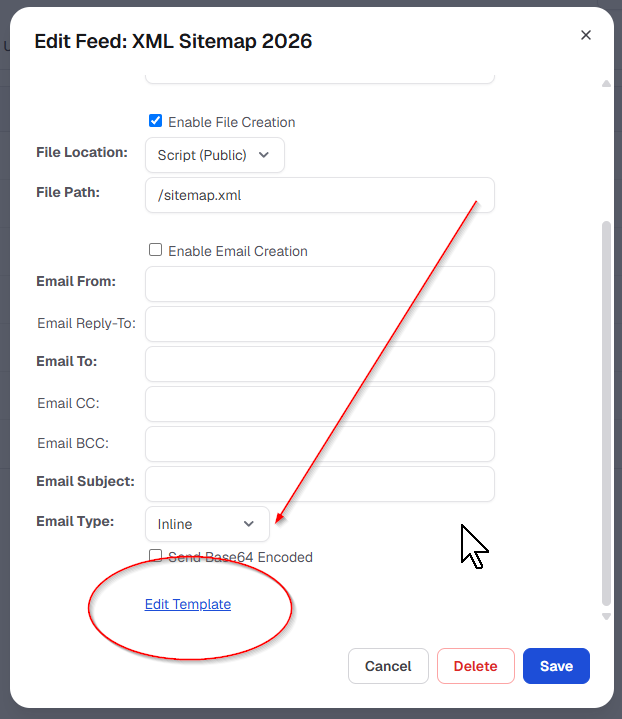
Step 1: Details Template
Leave the details template as is. By default it will have <mvt:item name="templatefeed" /> already in it.
Step 2: Template Based Feed Settings
The next section contains some settings for the template and the header, iterator (loop), and footer.
At the top of this section are a handful of settings. Make sure they reflect the list below.
- Mode: Product
- Load: Active
- Encoding: None
Header template: We'll add the home page of the site here and make <lastmod> the current day. No reason not to tell the world that this page is updated daily.
Put your home page url in.
Important LASTMOD Note: If your home page has rotating featured products or other content that changes regularly, keep the <lastmod> line. Otherwise, remove it and treat the home page like any other static URL. It does not help you to include the lastmod line if your homepage does not truly have new content on a regular basis.
<urlset xmlns="http://www.sitemaps.org/schemas/sitemap/0.9">
<url>
	<loc>https://www.domain.com</loc>
	<lastmod><mvt:eval expr="s.dyn_tm_year $ '-' $ padl(s.dyn_tm_mon,2,'0') $ '-' $ padl(s.dyn_tm_mday,2,'0')" /></lastmod>
</url>
Iterator Template: This is the built in loop template. The code below rolls through all your active products, skips any products that have a "long" url (with merchant.mvc? in it), and uses the true product updated date rather than the current date for <lastmod> which is what happens when you use the built in sitemap generator as of Oct 2026.
<mvt:if expr="'merchant.mvc?' IN l.settings:record:url LE 0">
	<mvt:do name="l.ok" file="g.module_library_db" value="product_load_code(l.settings:record:code,l.product)" />
	<mvt:assign name="l.settings:date_day" value="padl(time_t_dayofmonth( l.product:dt_updated, timezone()),2,'0') " />
	<mvt:assign name="l.settings:date_month" value="padl(time_t_month( l.product:dt_updated, timezone()),2,'0') " />
	<mvt:assign name="l.settings:date_year" value="time_t_year( l.product:dt_updated, timezone()) " />
	<url>
		<loc>&mvt:record:url;</loc>
		<lastmod>&mvt:date_year;-&mvt:date_month;-&mvt:date_day;</lastmod>
	</url>
</mvt:if>
Footer Template: We use the footer template to manually load categories and static urls. Inactive categories are skipped, and active categories have their urls loaded. <lastmod> is set to the last time the category was updated. A more thorough addition to this loop would be to load the latest product from the category and use the product last updated date but I don't feel like dealing with that right now.
IMPORTANT: Add your domain name in the <loc> section of the category loop, replacing www.domain.com
Static URLs: Miva merchant by default adds ALL your pages to the sitemap, including account only pages. It's better if you simply take your handful of static pages like privacy, shipping, about, and whatever else you have, and putting them in here manually. As the popular buzzword being overused today, "curate" your static links so that only the important ones are there. Again, make sure you put your real urls in for that section under the mvt:foreach loop.
<mvt:do file="g.Module_Library_DB" name="l.ok" value="Runtime_CategoryList_Load_All( l.settings:categories)" />

<mvt:foreach iterator="cat" array="categories">
	<mvt:if expr="l.cat:active NE 1">
	<mvt:foreachcontinue />
	</mvt:if>
	<mvt:assign name="l.settings:date_day" value="padl(time_t_dayofmonth( l.settings:cat:dt_updated, timezone()),2,'0') " />
	<mvt:assign name="l.settings:date_month" value="padl(time_t_month( l.settings:cat:dt_updated, timezone()),2,'0') " />
	<mvt:assign name="l.settings:date_year" value="time_t_year( l.settings:cat:dt_updated, timezone()) " />
	<mvt:do file="g.Module_Feature_URI_DB" name="l.settings:uri" value="URI_Load_Category_Canonical(l.settings:cat:id, l.settings:canonical)" />
	<mvt:if expr="l.settings:canonical">
		<url>
			<loc>https://www.domain.com&mvt:canonical:uri;</loc>
			<lastmod>&mvt:date_year;-&mvt:date_month;-&mvt:date_day;</lastmod>
		</url>
	</mvt:if>
</mvt:foreach>

<mvt:comment> ## put your own static urls here, change domain to whatever your domain is ## </mvt:comment>

<url><loc>https://www.domain.com/about.html</loc></url></span><url><loc>https://www.domain.com/international.html</loc></url>
<url><loc>https://www.domain.com/contact.html</loc></url>
<url><loc>https://www.domain.com/customer-reviews.html</loc></url>
<url><loc>https://www.domain.com/policies.html</loc></url>
<url><loc>https://www.domain.com/privacy-policy.html</loc></url>
<url><loc>https://www.domain.com/value.html</loc></url>
<url><loc>https://www.domain.com/shipping.html</loc></url>
<url><loc>https://www.domain.com/customer-service.html</loc></url>
<url><loc>https://www.domain.com/payment.html</loc></url>
<url><loc>https://www.domain.com/layaway.html</loc></url>

</urlset>
Step 3: Submit Sitemap
If you haven't already be sure to submit your sitemap to Google search console and Bing webmaster tools.
Google: https://search.google.com/search-console/about
Bing: https://www.bing.com/webmasters/about
Step 4: Check and Update ROBOTS.txt file for the proper sitemap lines.
FTP into your site and find the robots.txt file in the root script directory.
Update robots.txt: Search engines look for sitemap locations in your robots.txt file, so add a Sitemap: line for each sitemap your store generates, such as this product and category sitemap plus any others like a blog sitemap. Each line needs the full absolute URL, including https://. The lines can go anywhere in the file and apply no matter which User-agent rules you have. After updating robots.txt, submit the sitemaps in Google Search Console and Bing Webmaster Tools so they get picked up right away.
User-agent: *
Disallow:
Sitemap: https://www.domain.com/sitemap.xml
Sitemap: https://www.domain.com/blog-sitemap.xml
Replace blog-sitemap.xml with whatever filename your blog module actually uses. The User-agent and Disallow lines are only there to show a complete file, so keep the store’s existing rules in place and just add the Sitemap: lines.
https://www.scotsscripts.com/mvblog/sitemap-a-better-sitemapxml-file-for-miva-merchant.html
